 paintqr
A code for every product, with an AI assistant and the API
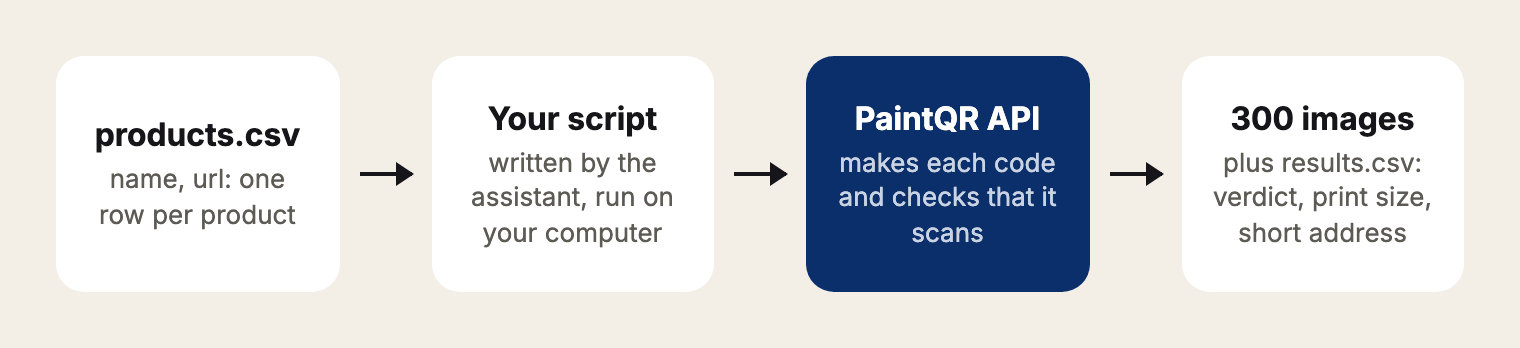
Making one code by hand takes a minute. One for each of 300 products or tables is a job for a short program, called a script, and an AI assistant can write it.
Who this is for
Anyone with a spreadsheet of products who will paste a prompt into an assistant and type the commands it dictates. Up to 200 rows need no program. On Pro, the 'Make codes from a file' button in the Codes tab of your dashboard takes a CSV file (any spreadsheet saves one) of names and web addresses and makes a code with an editable link for each row. A script suits more rows, repeated runs or static codes, which hold your web address itself.
What the API does
PaintQR makes QR codes whose squares draw a picture, letters or an icon. Its API lets a program, in place of a person on the website, send what a code should open and show and get back the image, whether it passed the scan check, and the smallest size to print it at.
Each request carries an API key, the password your program sends; you create one in the API tab of your dashboard. Codes for print need a plan. Pro, US$8 a month, makes up to 500 codes a month through the API and holds up to 500 editable links at one time; the API plan, US$29 a month, allows 5,000 of each. An identical request is not counted again, so rerunning an unchanged script costs nothing, and neither does asking whether a design would scan before it is made. Requests a minute are limited too, so the script pauses now and then: on Pro, 300 rows take about half an hour.
The prompt to give the assistant
Ask the assistant for a script that you run on your own computer: copy the prompt in the box and change the file name and the columns.
Paste the sections 'Make a code' and 'Check a design without making it' of our developers page, which is public, into the conversation too, so the assistant uses the real field names.
Write a Python script that reads products.csv, with the columns name and url. For each row, build the JSON body {"content": {"type": "link", "url": <url>}, "picture": {"text": <first two letters of the name, in capitals>, "solid": true}, "style": {"preset": "classic"}, "detail": "medium", "balance": "picture", "quality": "best", "editable": true}. Send every request with the header Authorization: Bearer followed by the value of the environment variable PAINTQR_KEY, and a 60-second timeout. First send the body as a POST request to https://paintqr.com/v1/check, which makes nothing and counts nothing. If the answer's scan.verdict is fragile or fail and its scan.suggest is not null, copy the fields of scan.suggest into the body. Then send the body as a POST request to https://paintqr.com/v1/codes. Do both for every row on every run. From the second answer take id, scan.verdict, min_print_cm, short_url and image_url, and write them with the name and the fields you changed to a new results.csv. Unless the image file already exists, download image_url with the same Authorization header and ?format=png&size=1200, and save it as the row number plus a file-safe version of the name. If an answer is 429 or 503, wait the number of seconds in its Retry-After header and try again, up to five times. If it is 422, write the answer's detail message in that row of results.csv and go on. On any other failure print the row and the detail message and stop. Then ask which system my computer runs and tell me step by step how to install what the script needs, set PAINTQR_KEY and run it, using a made-up key in your examples.
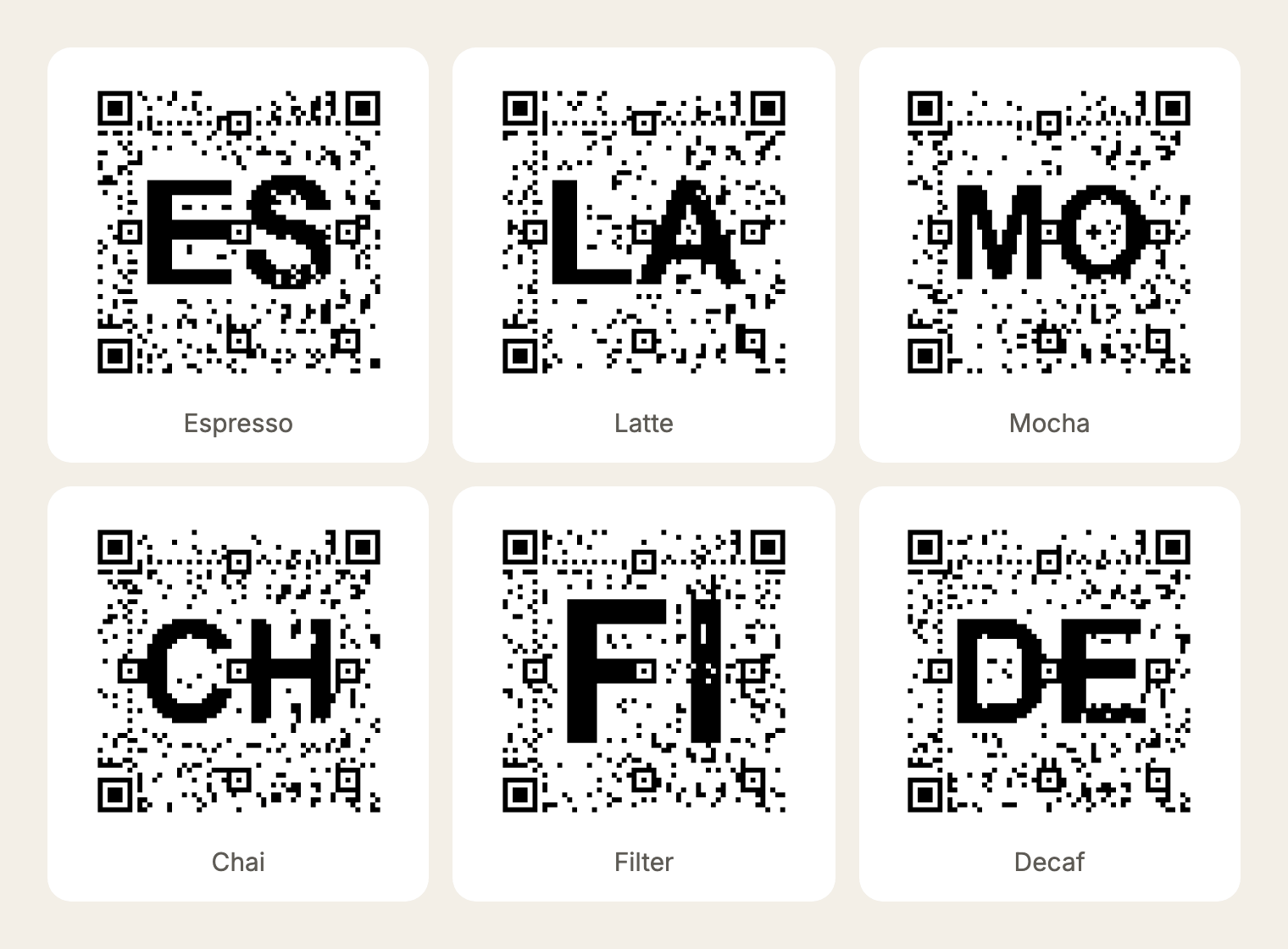
Settings used: Letters as the picture: the first two letters of each name, in capitals. Style: Classic. Keep the logo or face exact: on. Detail: Medium. Picture or safety: Cleaner picture. Quality: Better (Pro). In the API these are the prompt's settings without "editable": true, so the pictured codes are static; "best" is the maker's Better. Print at 4 cm or larger.
Choices made in the prompt
The prompt asks for editable links: each code holds a short address, so you can change where it leads after printing, and its scans are counted. That commits you to Pro or the API plan for as long as the printed codes are in use: if the subscription ends, the codes keep forwarding for 30 days, then show a paused page until it is renewed. Delete "editable": true for static codes, which need nothing from us once printed but cannot be changed or counted.
On a free key, delete both "editable": true and "quality": "best" from the prompt: each needs a plan. The script still runs, for 25 codes a month, and returns small preview images and no short address. "balance": "picture" with "solid": true is also a choice: the cleanest letters and the least to spare in print, so test a print.
Keep the key out of the conversation
Never paste your API key into an assistant, a shared document or a web page. The prompt has the script read it from an environment variable, a setting on your own computer, so the key stays there. If your assistant can run commands on your computer, set the key in a terminal window that it does not control, and not in a file in the folder it works in. If a key is exposed, revoke it in the API tab and make a new one.
Check the script's output
An assistant can write a script that looks right and is not, so run it on three rows before three hundred. If it stops, paste the message it printed, never the key, back to the assistant. Settle the prompt on those rows: after a change to it, every code is new and counts again, an editable link gets a new short address, and image files already saved are not replaced.
Then open results.csv. Where the first request found a design fragile, meaning it passed the scan check with little to spare, or found that it could not be read at all, the script has already made the code with the change the service suggested, such as a lower detail, and the row says which. The scan.verdict column should read ok on every row. A row still marked fragile had no such fix: print that code larger, or make that one code again by hand in the maker with 'Picture or safety' set to Safer scan. A row with a message and no code was refused; its message names what to change. The check is on the image, not on your print: print one code no smaller than its min_print_cm, scan it, and check that it opens the page you meant.